
Decorate Your Amidakuji Event Page: Branding with Themes, Images, and Descriptions
When you run an amidakuji for a company event or a campaign, have you ever felt that the participation page looks the same for every event and falls a little flat? No matter how much thought you put into the draw, if your brand colors and the spirit of the event don't come through, it's hard to get participants excited.
With the event decoration feature in Amida-san's Organizer Plan (Pro), you can freely customize the participation page with theme colors, custom images, and a description. This article walks through how to decorate your event page and put your brand front and center.
The "every event looks the same" problem
Most lottery tools have a fixed design for the participation page. That's fine functionally, but it leaves something to be desired when it comes to setting the mood for an event.
What happens with a bland participation page
- Your company's brand colors and the character of the event never reach participants
- When you run several events in parallel, it's hard to tell them apart
- There's nowhere to communicate the event's purpose, notes, or how to take part
- It looks like a "draw thrown together at the last minute," with no sense of occasion or trust
The look is part of the participant experience
The participation page is the first thing participants see when they encounter your event. Whether or not it's polished makes a big difference in whether it reads as "a carefully prepared event" or "a routine draw." Decoration isn't just window dressing -- it's an element that builds reassurance and anticipation for participants.
Amida-san's event decoration feature
With the Organizer Plan (Pro), you can decorate the participation page with three elements. The organizer sets them up on the edit screen, and the finished decoration is shown to every participant on the participation page.
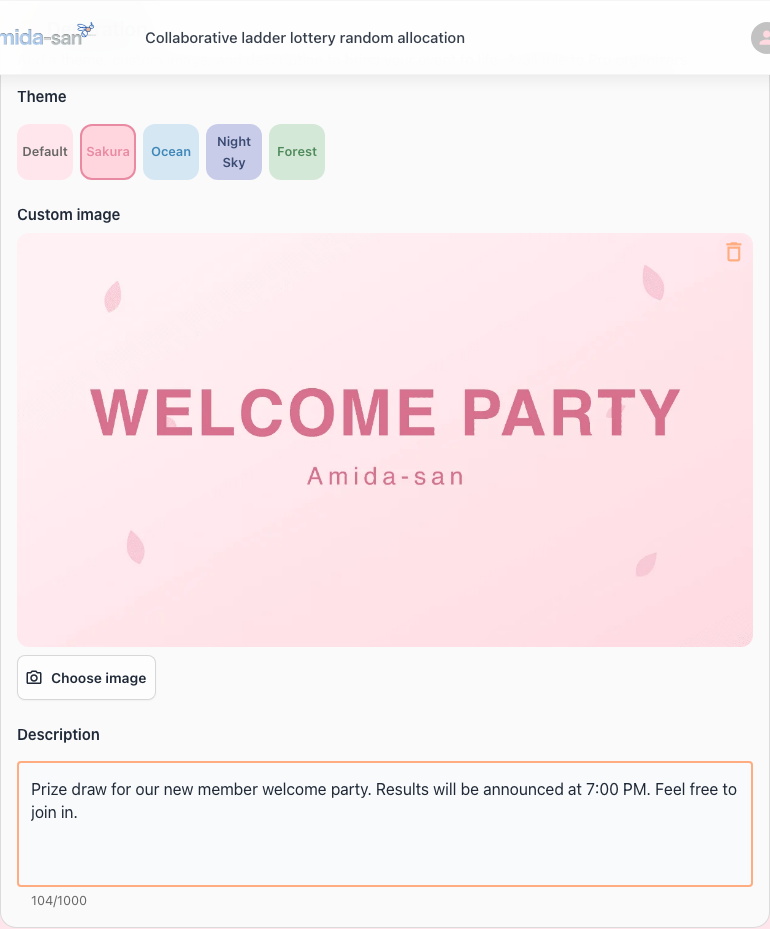
Set the mood with theme colors
Just pick one of five themes (Default, Cherry Blossom, Ocean, Night Sky, Forest), and the background and text colors of the entire participation page switch to match. They're built around tasteful, understated pastel tones, so they never feel out of place in a business setting.
- Cherry Blossom for welcome parties, new-hire training, and other warm spring occasions
- Ocean for summer events and fresh, breezy campaigns
- Night Sky for anniversary parties and moments that call for a sense of occasion
- Forest for calm study groups and workshops
Choose "No decoration (Default)" to return to the standard look at any time.
Get the message across at a glance with custom images
Upload your company logo or a campaign visual to display it in the header of the participation page. JPEG, PNG, and WebP images are supported.
A brand logo signals "this is an official event" and builds trust, while a campaign image conveys what the event is about at a single glance.
Communicate the purpose of the event with a description
You can add a description of up to 1,000 characters. Write whatever you want participants to know -- the purpose of the event, important notes, how it works, even the dress code. Putting it all in one place ahead of time cuts down on explaining things on the day and helps participants take part without confusion.
Only the organizer sets it up; everyone sees the result
Only the organizer who created the event can set up the decoration, so there's no risk of a participant accidentally changing it. The decoration you configure is shown to everyone on the participation page, and it stays available from the event details even after the draw is over.
With and without decoration
| Item | Without decoration (standard) | Amida-san event decoration |
|---|---|---|
| Page atmosphere | The same for every event | Set the mood with a theme |
| Branding | Not possible | Show your logo or campaign image |
| Event description | Nowhere to put it | Write freely, up to 1,000 characters |
| Telling events apart | Hard to distinguish | Easy to tell apart by theme and image |
| Who can set it up | -- | The organizer only (no misclicks) |
Ways to use decoration
Try Amida-san Free Now
By mixing and matching themes, images, and descriptions, decoration fits all kinds of events. Here are a few examples.
Add some flair to welcome parties and company gatherings
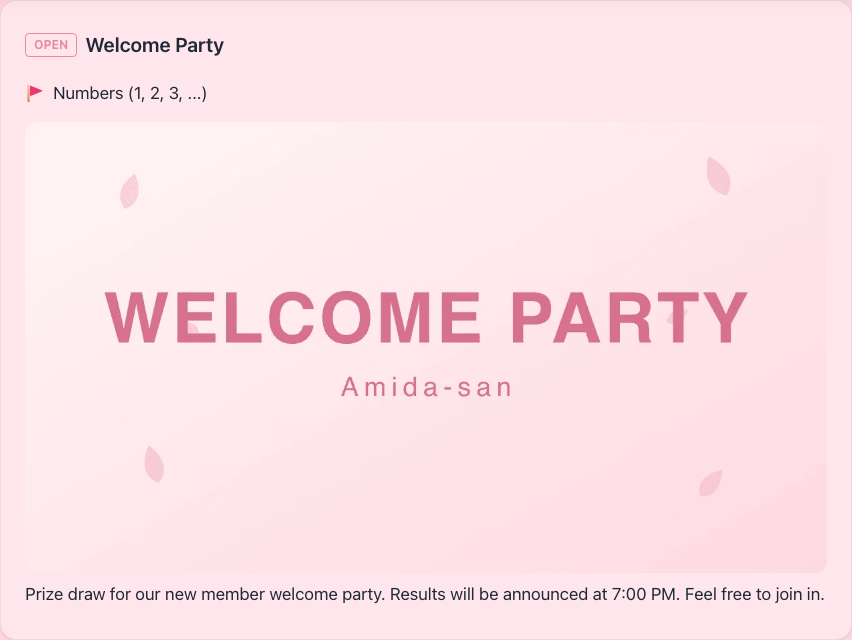
Pair the Cherry Blossom theme with an event banner image, and you get a festive participation page like the one at the top of this article. Note the start time and how things will run in the description, and participants won't be left guessing. For company events and seasonal events, you can create just the right atmosphere for the occasion.
Decide the seating on the spot and show it in a diagram
For an amidakuji that assigns numbers, attach a seating chart as a custom image. Participants look at the number they drew and immediately find their table and seat in the chart. The draw and the seating guide both fit on a single page.
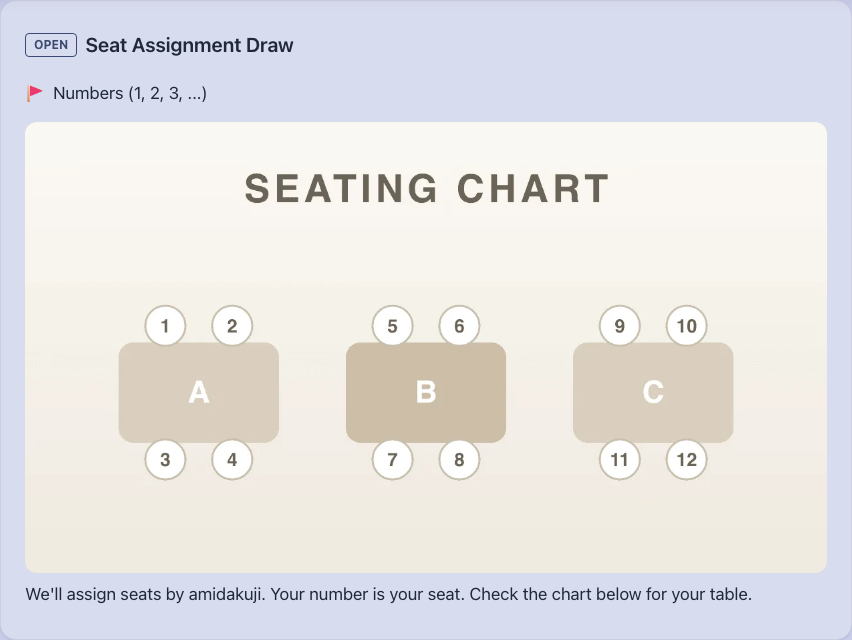
Set a calm mood with the Night Sky theme, and even when seating arrangements at a social or dinner are tricky to decide, you can assign seats fairly, right on the spot.
Guide online events and communities
For online events and community management, you can put how-it-works and important notes in the description. Participants can move ahead without confusion, and organizers spend less time explaining.
Frequently asked questions
Q1: Can I decorate on the free plan?
The event decoration feature is part of the Organizer Plan (Pro). On the free plan, the participation page has a fixed look, and you can't set a theme, image, or description.
Q2: What kinds of images can I use?
You can upload JPEG, PNG, or WebP images up to 5MB. The image is displayed in the header of the participation page.
Q3: How many themes are there?
Five, including the default (Default, Cherry Blossom, Ocean, Night Sky, Forest). Picking a theme gently switches the background and text colors of the participation page. Choose the default to return to the standard, undecorated look.
Q4: Can participants see the decoration too?
Yes. The decoration you set up is shown to every participant on the participation page. Only the organizer can configure or change it, so there's no chance of a participant accidentally altering the decoration.
Q5: How much does it cost?
The Organizer Plan (Pro) is $39 / month or $390 / year (annual saves about 2 months). Along with event decoration, you get re-draw, participation restrictions, unlimited result downloads, and more, all bundled together.
Make every event more inviting with the Organizer Plan (Pro)
The event decoration feature is available with Amida-san's Organizer Plan (Pro). For $39 / month (or $390 / year -- about 2 months saved), you get decoration, re-draw, participation restrictions, unlimited result downloads, an ad-free experience, and the rest of the toolkit for running events inside an organization. Go ahead and create a special, on-brand event of your own.
Want to see everything the Organizer Plan (Pro) offers in one place? Take a look at every Organizer Plan (Pro) feature, explained.
Other Pro Plan features
The Organizer Plan (Pro) bundles a full set of tools for running lotteries inside an organization. The following articles cover each feature in detail.
- How to redo an amidakuji (re-draw with saved history)
- Members-only lottery (participation restriction)
- Save lottery results to CSV / Excel (unlimited downloads)
- Amida3D animation effect (unlimited Amida3D)
- Cancel a mistakenly created event (suspend / restore)
- Remove or edit lottery participants
- Prevent accidental edits by participants (account lock)
- Ad-free lottery (no ads for participants)
- 365-day long-term storage (extended availability)
- Issue a receipt (for corporate / expense reports)
All of these are included in the Organizer Plan (Pro) at $39 / month or $390 / year.
Try Amida-san Now!
Experience fair and transparent drawing with our simple and easy-to-use online ladder lottery tool.
Try it Now