
How to Use Amida-san: Create an Amidakuji and See the Results
Amida-san is an online amidakuji, a ghost leg lottery from Japan. The organizer creates a draw, and each participant joins from their own phone and draws their own rungs. This guide walks through every step from creating a draw to seeing the results, using real screens. As an example, six people pick the host, note-taker, and timer for a weekly meeting.
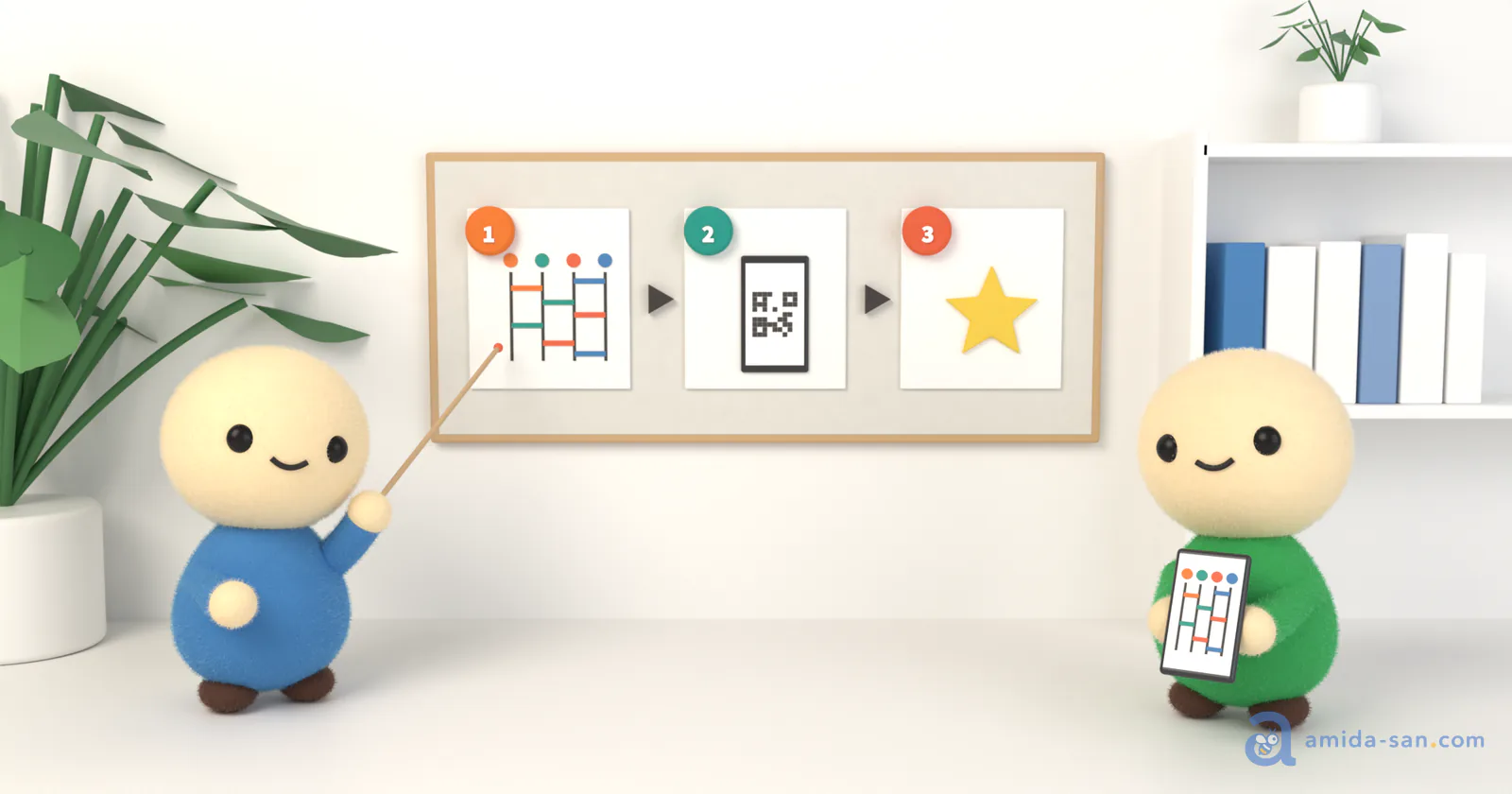
What Makes Amida-san Different
- No sign-up and no app. Organizers and participants both use a web browser
- Every participant draws their own rungs, so the organizer cannot decide the result alone
- Free, with up to 299 participants per draw
- People join from a link. No need to set up a group chat first
When you spin a wheel and only share the result, people may wonder whether the organizer picked it. With Amida-san, everyone draws lines and everyone watches the balls follow them, so the result is easy to accept.
The Steps at a Glance
- The organizer creates a draw with a title and outcomes
- The organizer shares the join link
- Participants enter a name and draw rungs
- The organizer starts the draw once everyone has joined
- Everyone sees the results
Creating a draw takes about a minute. Here is each step in detail.
Step 1: Create a Draw (Organizer)
On the Amida-san home page, fill in the title and allocations under "Create Ladder Lottery".
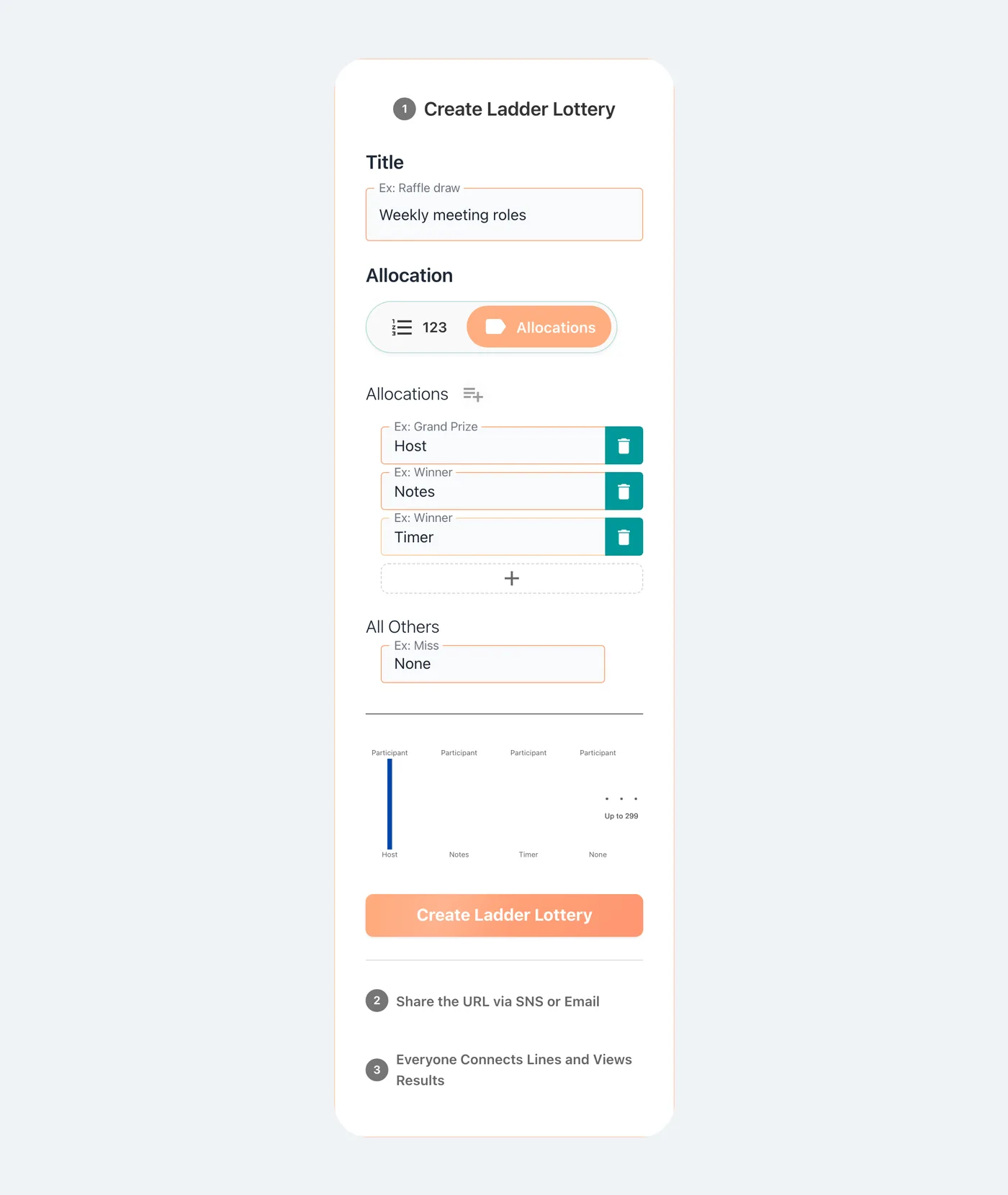
- The title is the name participants see. Make it clear what you are deciding, such as "Weekly meeting roles" or "Holiday party prize draw"
- Allocations are the outcomes written at the bottom of the amidakuji. Choose "123" for numbered positions, or "Allocations" to type in roles or prizes
- "All Others" is the outcome for everyone beyond the number of allocations you entered. In the example it is "None", so three of the six people get a role and the other three don't
The icon next to Allocations lets you paste a list, one item per line. If you enter the same name several times, that outcome gets that many slots. For example, three "Red" and three "Blue" turns the draw into a team split.
When you're done, tap "Create Ladder Lottery".
Step 2: Share the Link (Organizer)
Once the draw is created, its join link appears. Copy it and send it to participants by WhatsApp, Slack, Teams, email, or any other channel.
Tap "Go to Ladder Lottery" to open the draw. The "Invite" section on the "Manage" tab shows the same link, and its share button opens a QR code plus buttons for LINE, Teams, Discord, and X. When everyone is in the same room, putting the QR code on a screen is the quickest way to get people in.
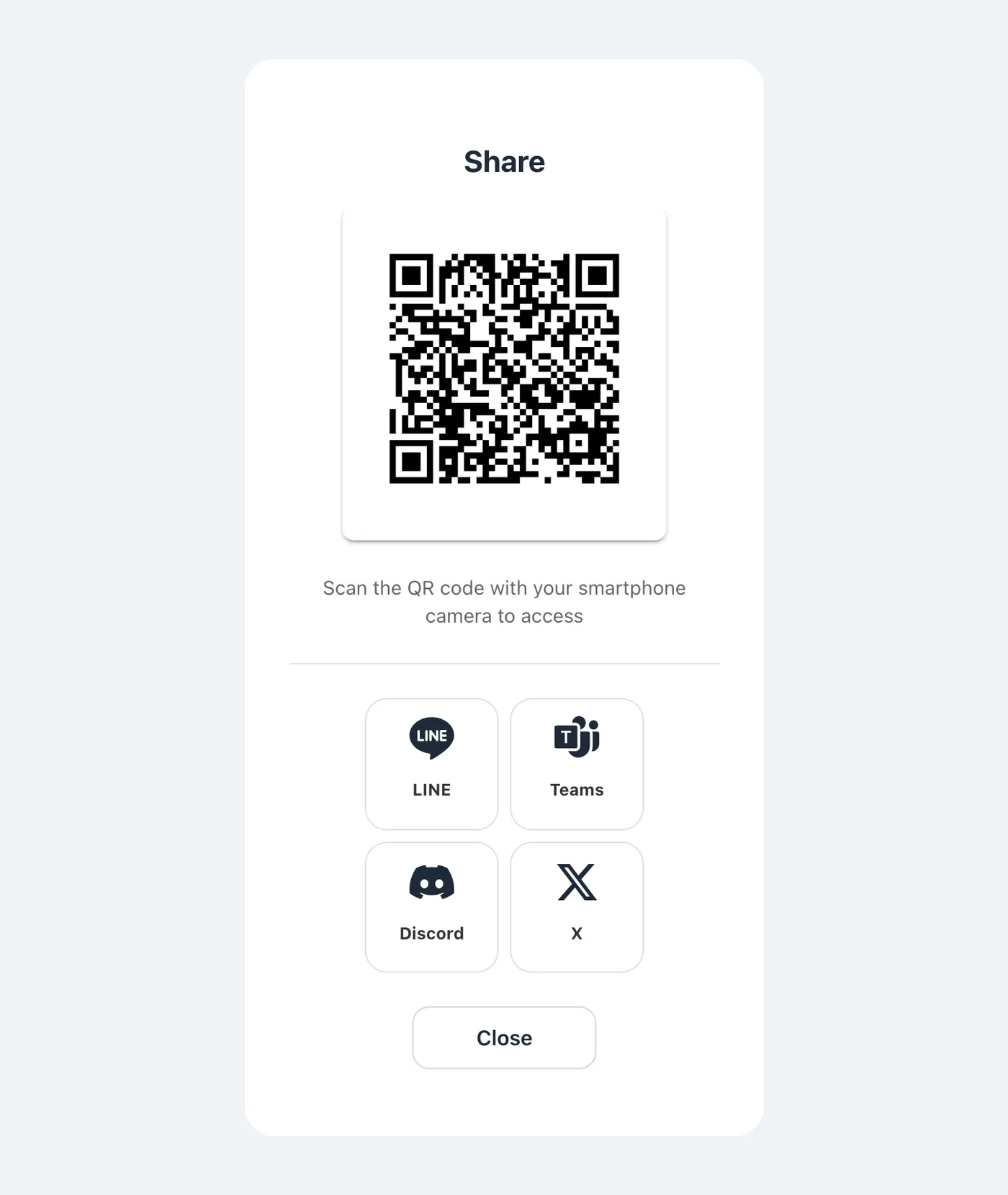
Anyone with the link can join, so send it only to the people you want in the draw.
Step 3: Enter a Name and Draw Rungs (Participants)
Participants open the link and enter a name on the "Participate" tab. Then they add rungs with the arrow buttons on the left and right of their line.
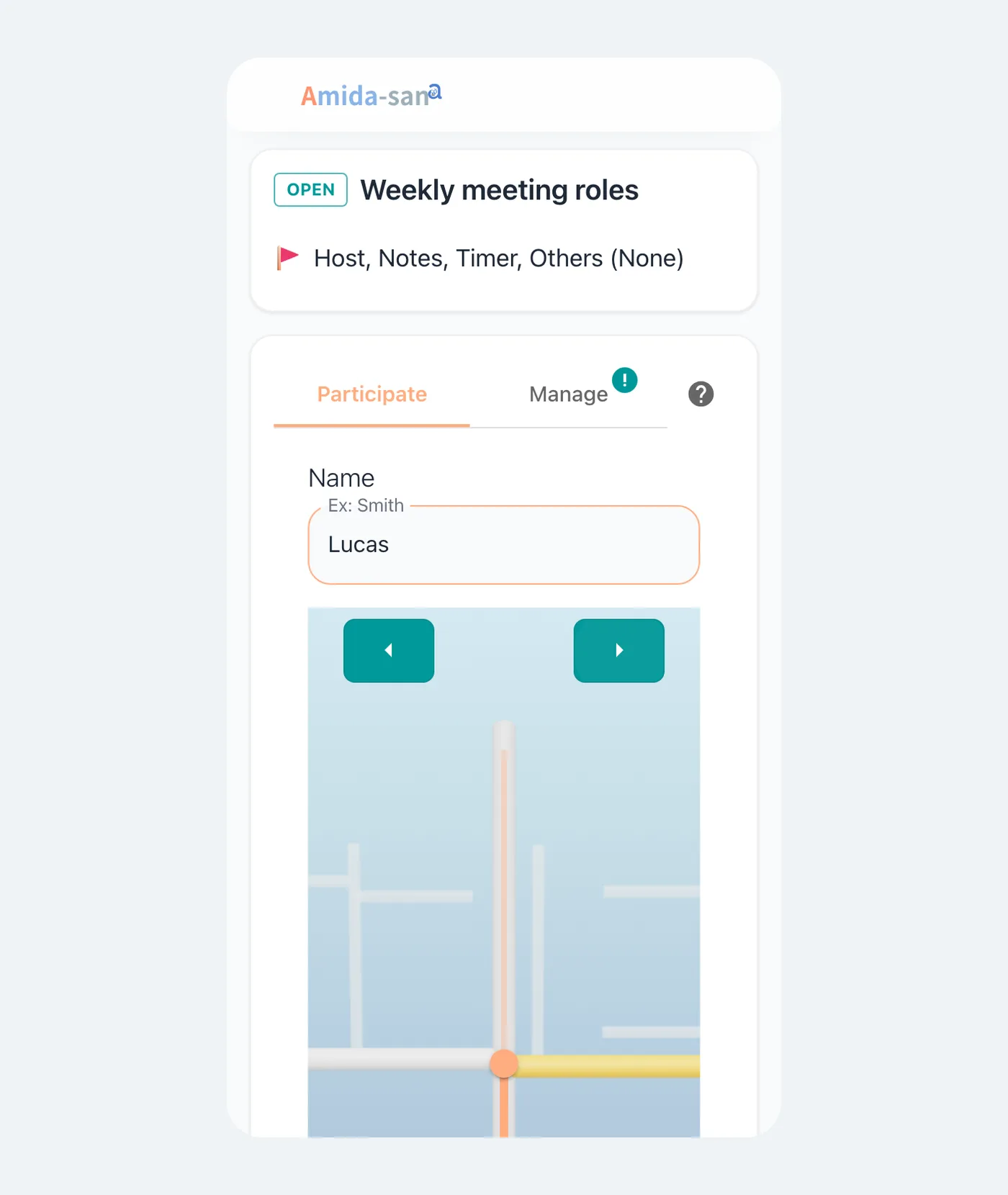
- Draw at least one rung on each side, two to four in total (the organizer can change the maximum)
- Slide each rung up or down to place it at any height
- Tap "Join" when you're done
After joining, participants can still change their name and rungs until the draw starts. Changes are saved automatically. If the organizer is also taking part, they join from the same screen.
Step 4: Start the Draw (Organizer)
On the "Manage" tab, the organizer checks the participant list. Once two or more people have joined, the "Start" button becomes available.
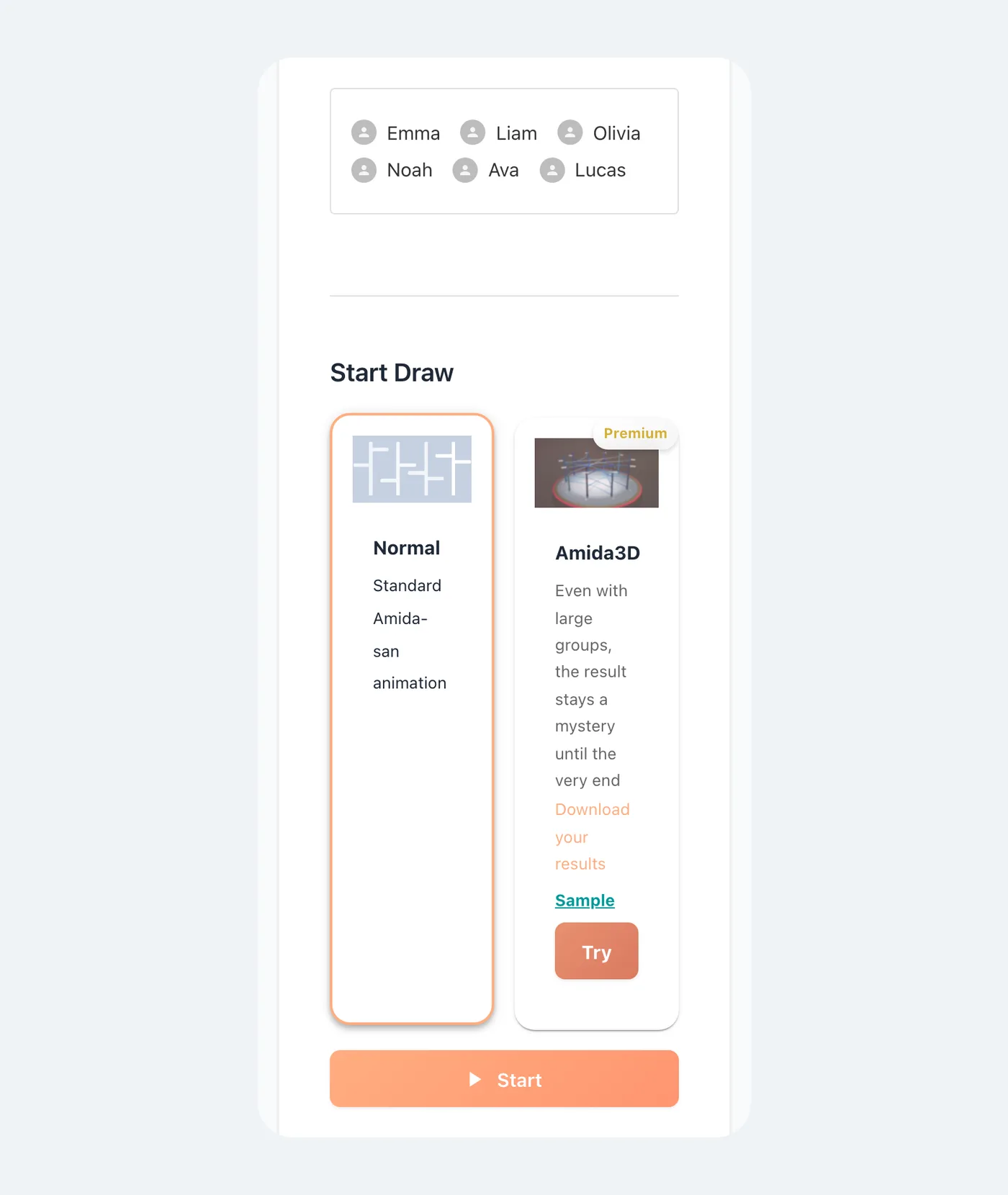
After the draw starts, nobody can join or change their rungs. Make sure everyone is in before you tap it.
Besides "Normal", you can also start with Amida3D ($3.99 per event), where the balls roll down a 3D course.
Step 5: See the Results
The screen switches to the results, and every ball traces the lines everyone drew until it reaches an outcome. Participants' screens switch to the results automatically too.
You can also pick one person and replay only their ball. A table shows who got which outcome.
You can come back to the results later from the same link for 180 days after the draw is created (keeping results longer).
Fixing Settings Before the Start
If you got the title or allocations wrong, fix them from "Edit" on the "Manage" tab. You can change them before the start, even after people have joined. The edit screen also has these settings:
- "Complexity" sets the maximum number of rungs each person draws. More rungs make the lines more tangled and the result harder to guess
- "Require unique display names" stops two people from joining with the same name
Preventing an Accidental Start
On the free plan, anyone with the link can edit and start the draw. If the group is large, or someone might tap Start by mistake, lock the draw with the lock button on the "Manage" tab. Once locked, editing and starting need a password. The password is shown only once, when you lock, so write it down.
Draws created on the Standard plan or higher can be edited and started only by the organizer from the beginning (organizer-only draws).
If Something Goes Wrong
| Problem | What to do |
|---|---|
| Someone joined by mistake or twice | Remove a participant (Standard or higher) |
| You need to redo the draw after it started | Redraw (Standard or higher) |
| You shared a draw with the wrong settings | Suspend the event (Standard or higher) |
| You want the results in a spreadsheet | Download as CSV or Excel |
For other questions, see the FAQ.
Summary
With Amida-san, the organizer creates a draw and shares a link, participants draw their own rungs, and everyone watches the results together, all in a few minutes. No sign-up is needed, so try making one from the home page.
Try Amida-san Now!
Experience fair and transparent drawing with our simple and easy-to-use online ladder lottery tool.
 Try it Now